


Installation Process
Follow these steps to install IA Mobile on your device:
Step 1
Tap the install button to begin the installation process
Step 2
Tap "Install" when the confirmation dialog appears

Untrusted Enterprise Developer Warning
After installation, the app may not open because it's not from a developer recognized by your device. If you encounter this issue, please follow these steps:
Step 1
Cancel the "Untrusted Enterprise Developer" warning
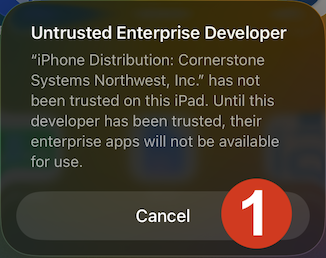
Step 2
Open the "Settings" app
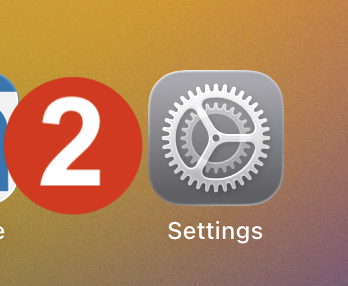
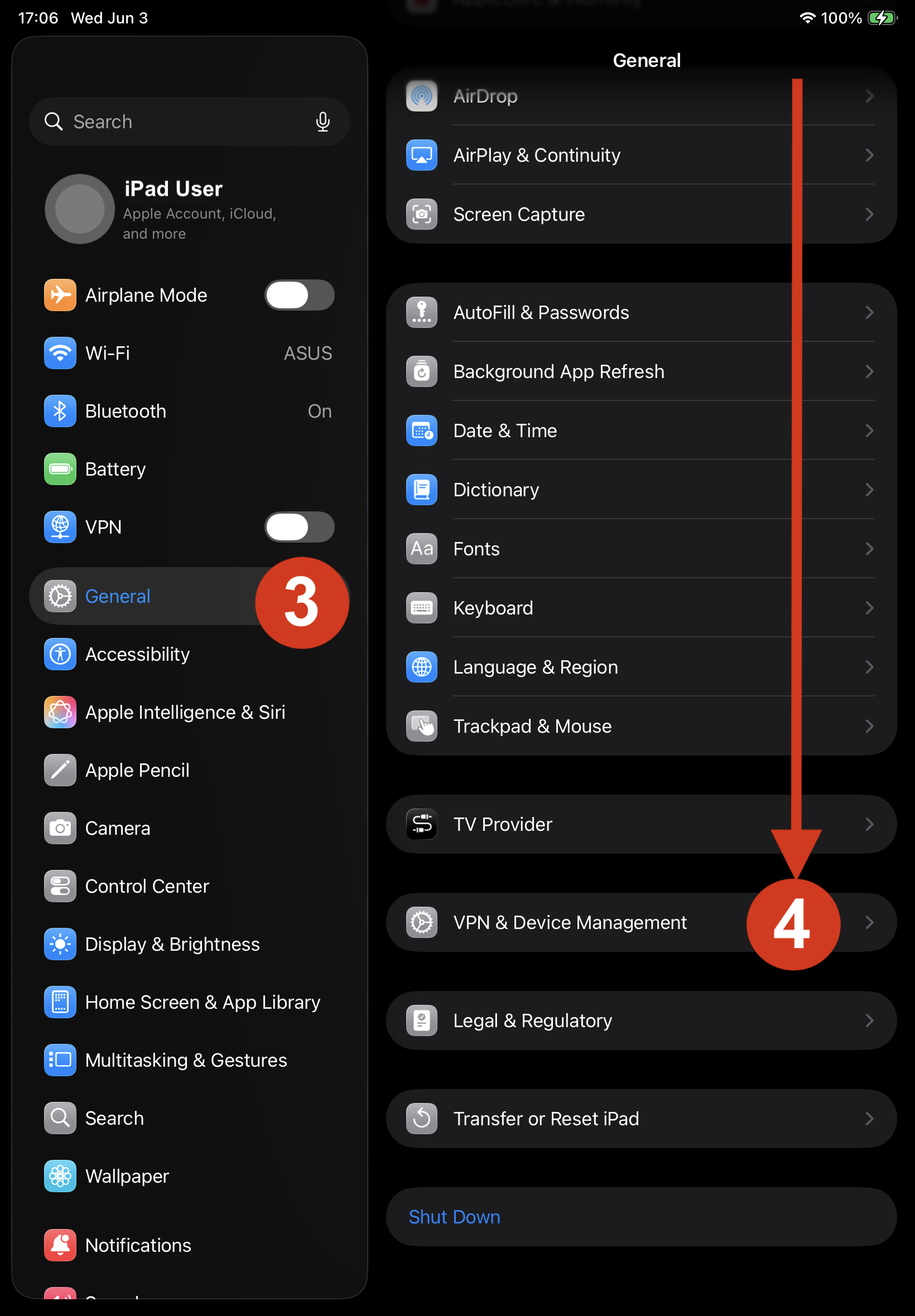
Step 3 and 4
Access the "Device Management" section of the "General" settings
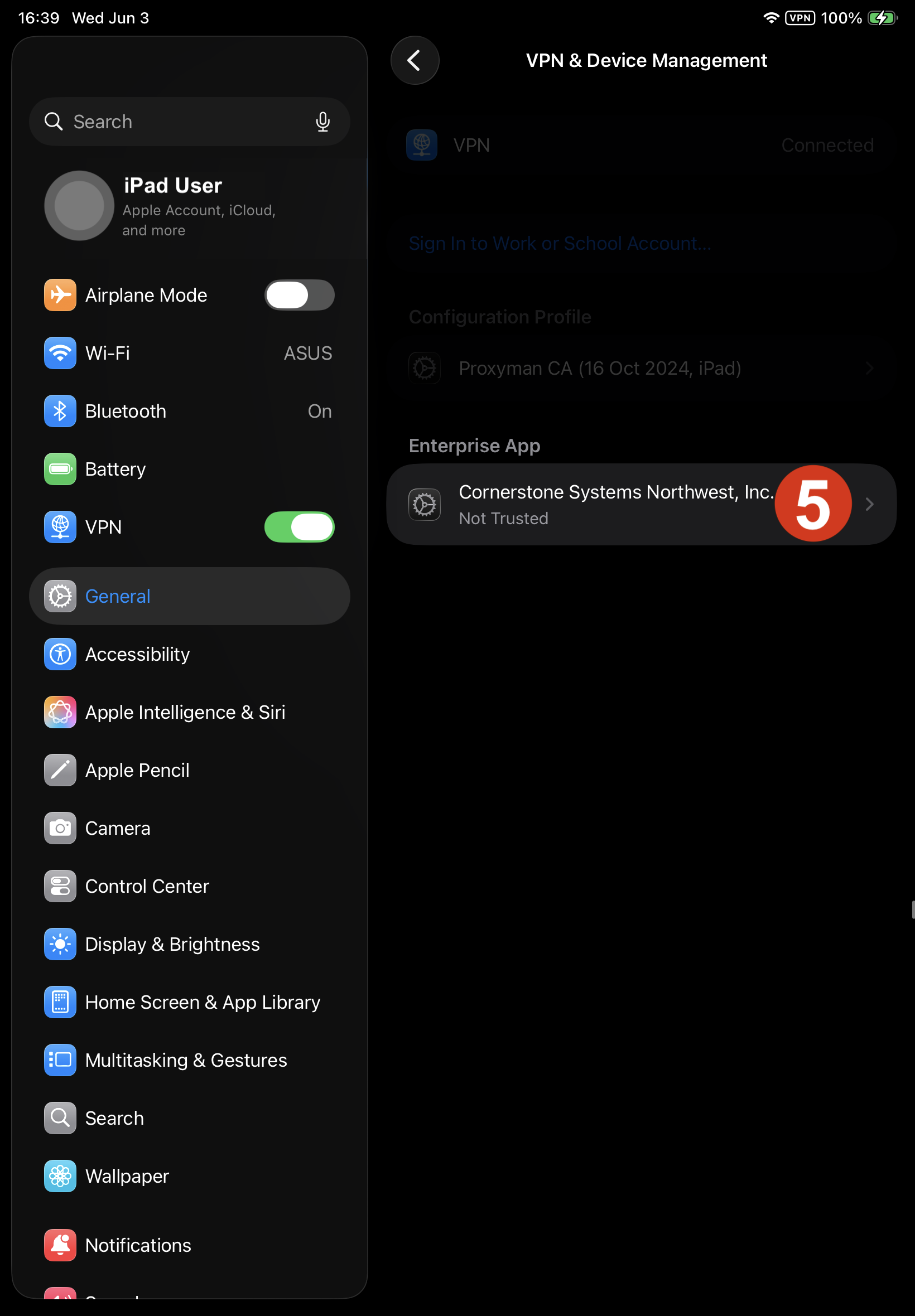
Step 5
Select the "Cornerstone Systems Northwest, Inc." item in the "Enterprise App" list
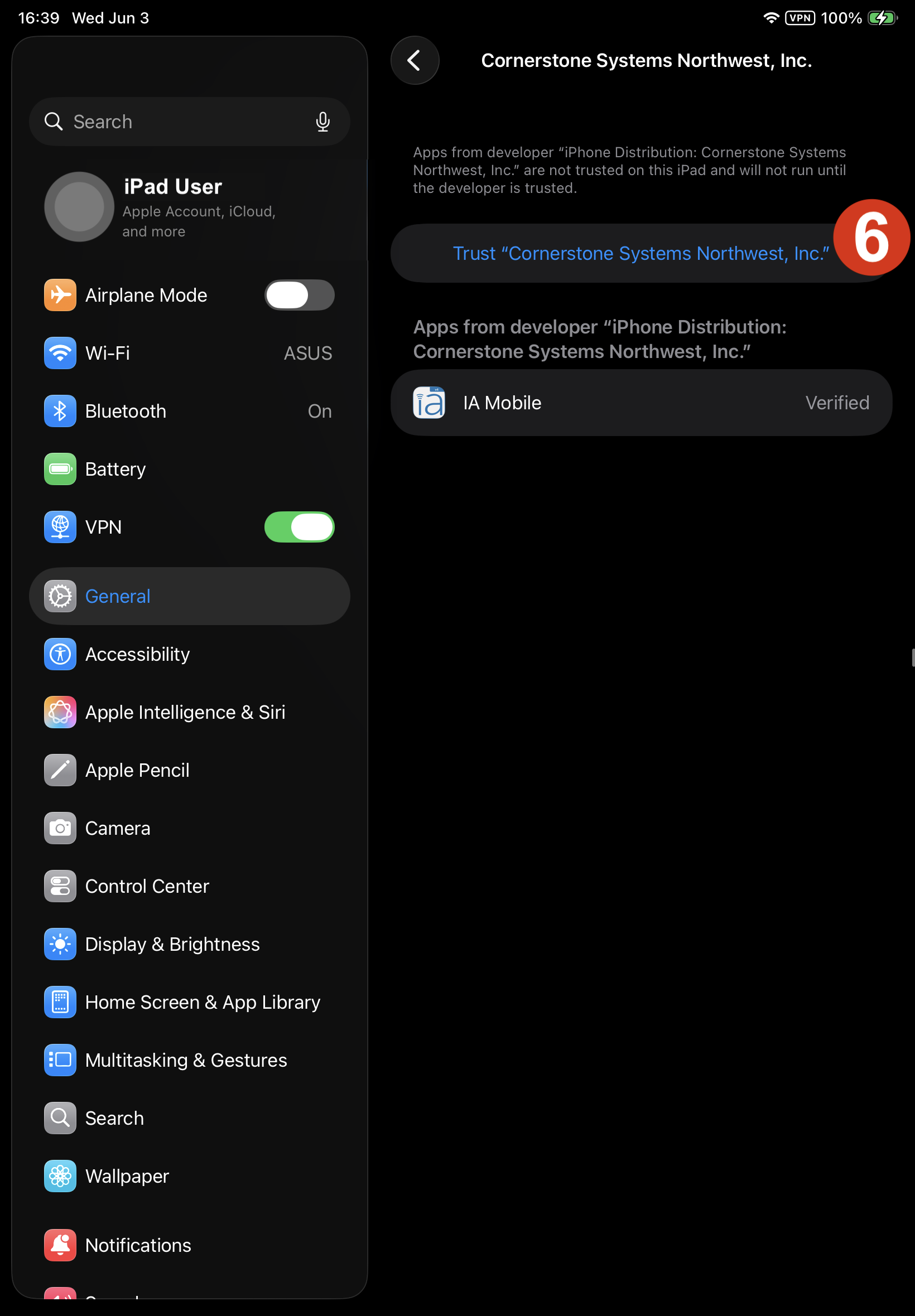
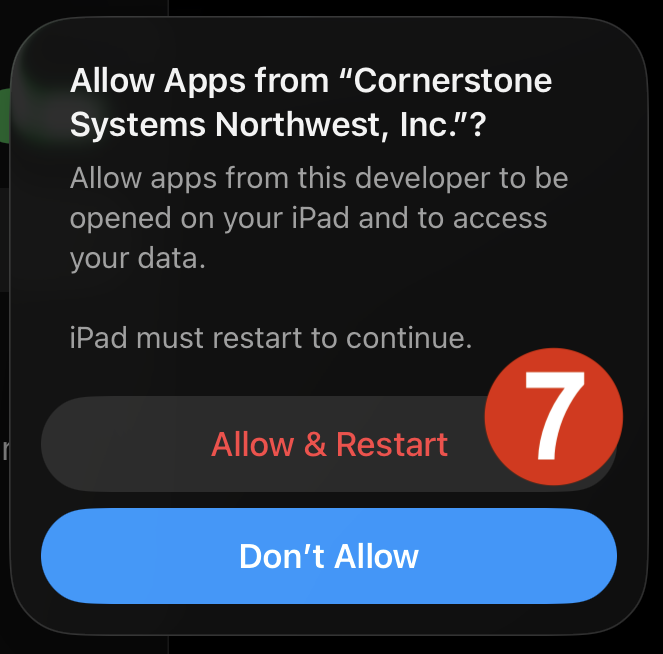
Step 6 and 7
Select the "Trust Cornerstone Systems Northwest, Inc." item, then tap the "Trust" button on the dialog box that pops up.
Application Updates
If your application stops working immediately when you start it, it might need to be updated. Don't remove the application. Instead, install the latest version from the IA Downloads page.
Additional Support
For additional support topics, including location services, camera access, and updating procedures, please visit our IA Mobile support page.