


Location Services
If location services are not working properly, you may see a status bar indicating location services are failing.
Example Status Bar
You may see this when location services are disabled:

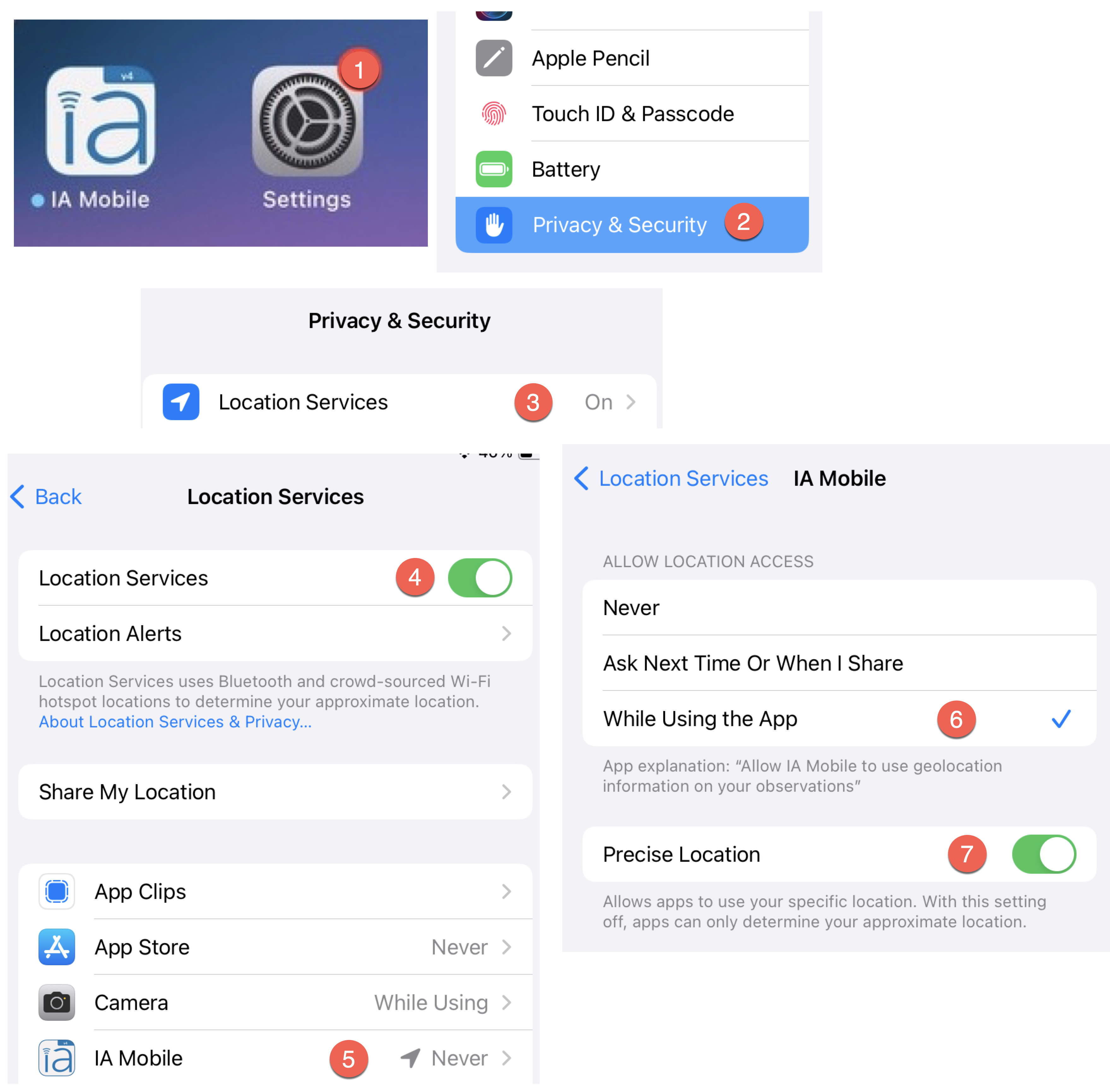
To restore location services:
- Tap the "Settings" icon
- Tap the "Privacy & Security" menu item on the left side
- Tap the "Location Services" menu item on the right side
- Ensure that "Location Services" for the device is enabled at the top of the screen
- Locate the IA Mobile application in the list of apps using location services. Ensure the description notes "While Using".
- If not, tap the application name and change to "While using app."
- Ensure that "Precise Location" is enabled.
Camera & Photo Library
Taking photos in IA Mobile requires the app to access the camera; Uploading photos from the iPad's library requires library access. Some inspectors have accidentally declined access when prompted.
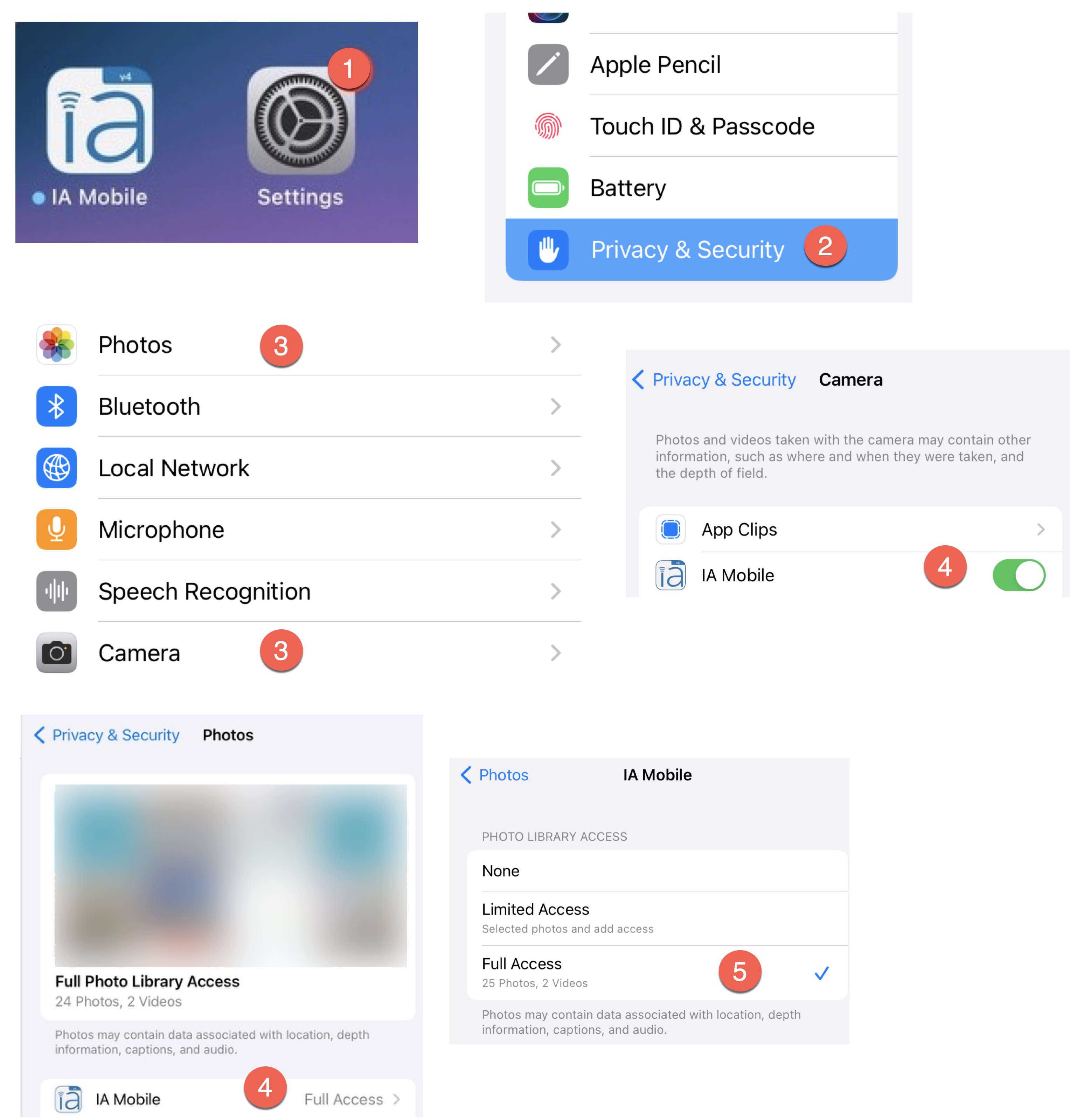
To restore in-app camera and library usage:
- Tap the "Settings" icon
- Tap the "Privacy" menu item on the left side
- Tap the "Camera" and/or "Photos" menu item on the right side
- Find the IA Mobile application and enable it
- Give the app full library access
- Tap the "Settings" icon
- Tap the "Privacy" menu item on the left side
- Tap the "Camera" and/or "Photos" menu item on the right side
- Find the IA Mobile application and enable it
- Give the app full library access
Using photos taken with the iPad's camera outside IA Mobile
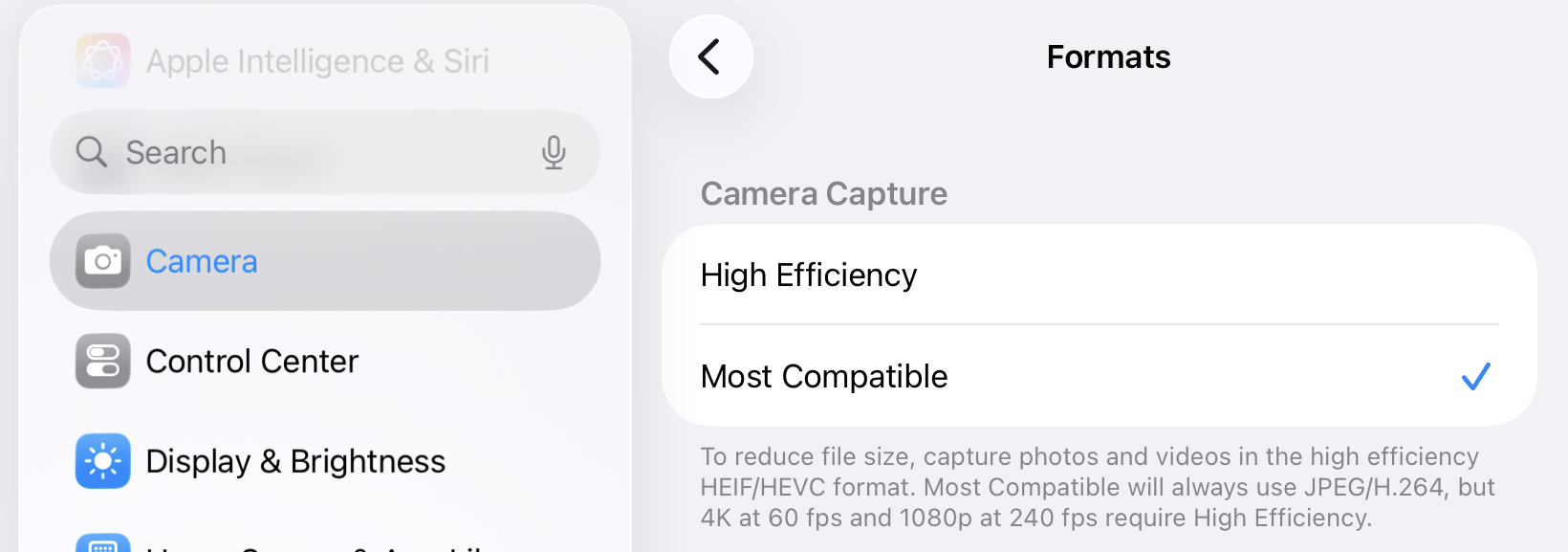
By default, the camera on an iOS device will store photos in a high-efficiency format that cannot be uploaded as attachments into IA Desktop. IA Mobile will automatically convert photos taken with the app into to a compatible format, but if you take photos with your iPad that you intend to import into your inspection via IA Desktop, please set your Camera app to use the "Most Compatible" format option.
Updating Inside the Application
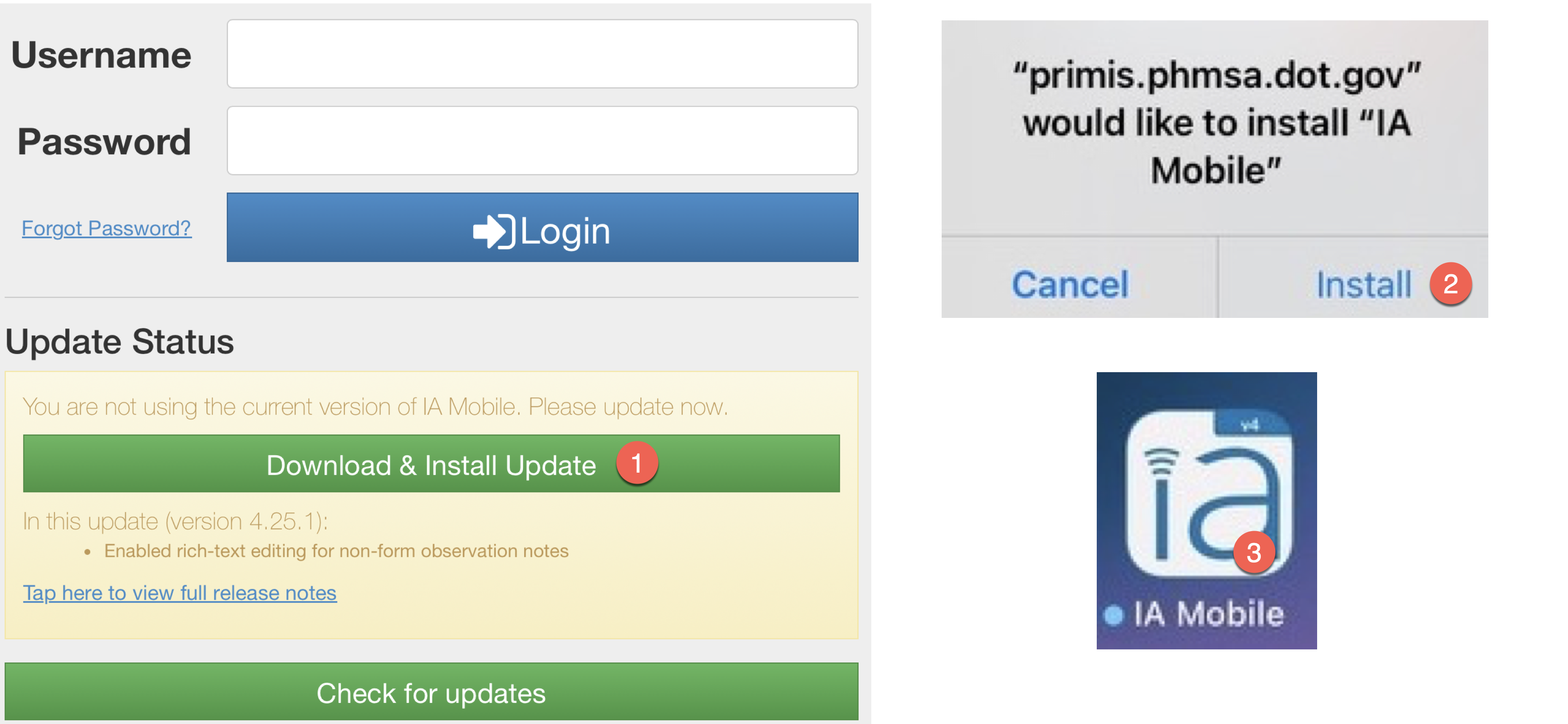
To update IA Mobile to the latest version:
- Tap the "Download & Install" button on the login page
- Tap the "Install" button when prompted
- When the download is complete, tap the application icon to relaunch the updated app.
Need help?
For additional support questions, please contact the Inspection Assistant support line at ia-support@dot.gov .