User Interface/Usability
- Updated library files for 2021
- New Gas and HL Rule FAQs added
- Link target highlighting added for both FAQ and Enforcement Guidance
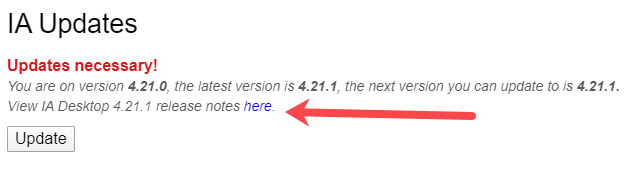
- A link to full release notes is displayed on the update screen when an IA Desktop update is offered:
- Ability to link/unlink an attachment to a question, result, or form with a single click:

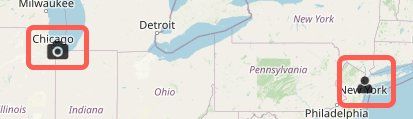
- On the attachment map view, different types of attachments are now marked by different icons to allow for faster identification and orientation:
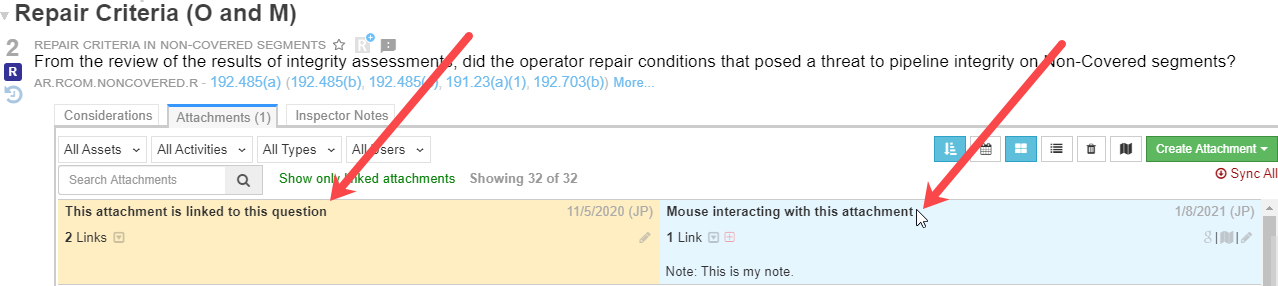
- When viewing all attachments via the attachments tab for a question/result/form, items linked to the question/result/form will be highlighted in gold while attachments that the mouse is interacting with will be blue:
- On the Home tab, tasks for demo inspections will now be marked as “DEMO” and moved to the bottom of the task list so as to not be confused with pending tasks from live inspections:

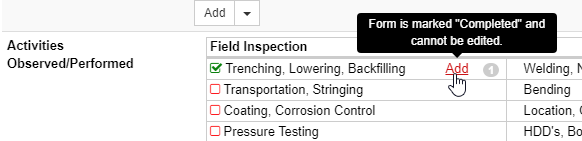
- On locked Construction Daily forms, “tooltips” that were missing have been added:
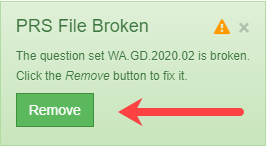
- In the case that a PRS/question set is not downloaded properly, an alert will display. Clicking “remove” on this alert will clear the broken PRS/question set. It can be prompted to freshly download by opening an inspection that uses that question set:
- The first time a new install of IAD is opened, only recent PRS/question sets will automatically download (thus speeding the time to get started up with a new IAD install)
Small improvements
- Improvements to the PRS/Question change tracking feature
- Improvements to the Attachments tab
Updates to Reporting Features (released 01.29.2021)
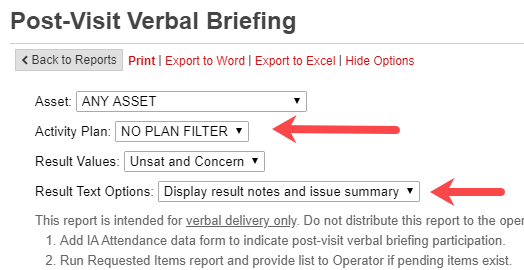
- The Post-Visit Verbal Briefing report now has an “Activity Plan” filter as well as the option to suppress result notes:
- If used, this filter will cause the report to list only results that are planned for that activity. This will allow verbal reports to be generated based on the current activity and thus be more focused.
- The “Asset” filter can still be applied at the same time as the “Activity Plan” filter and will reduce the listing only to results specifically tagged to that asset (as before).
- The “Activity Plan” filter can be set to “NO PLAN FILTER” to have no effect.
- Re-presented questions can still appear, although they may be reduced in frequency if activities include specific groups/subgroups and the “Activity Plan” filter is applied.
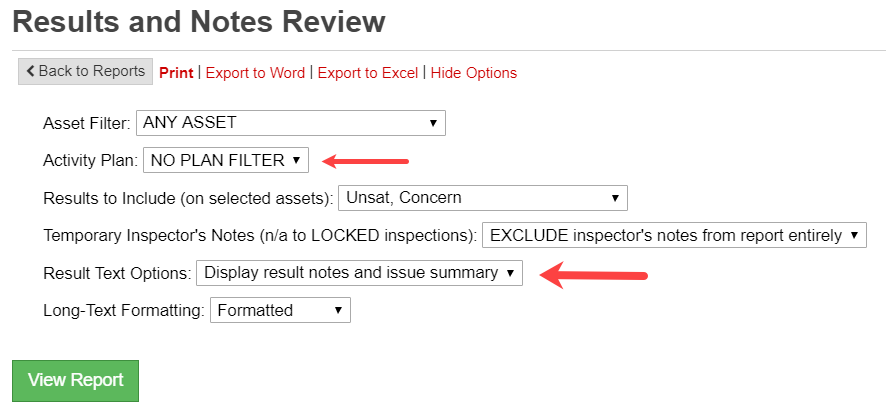
- The Results and Notes Review also has an “Activity Plan” filter, as well as the option to suppress result notes:
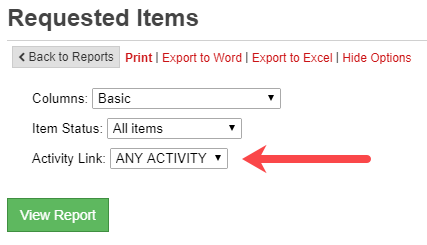
- Similarly, the Requested Items Report has an “Activity Link” filter:
- A summary of the results with various counts has been added to the Post-Visit Verbal Briefing report:

- For Results and Notes Review, Post-Visit Verbal Briefing, and Post-Inspection Written Preliminary Findings reports, the question’s number (as it appears in the planning presentation) is now displayed next to the question’s text:

- The assets listed in the headers of the PIPES Act reports (Verbal Briefing, Preliminary Findings) now reflect only the assets affected in the results presented in the current report. Previously, the entire list of assets in the inspection was presented here which was potentially misleading for these reports:

- Question link display has been standardized across reports:

- Written Preliminary Findings report now has question links (they will not show in Word export):
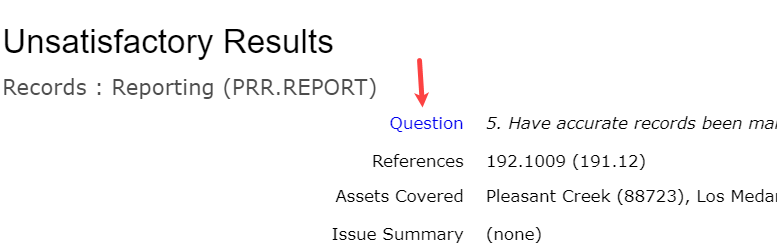
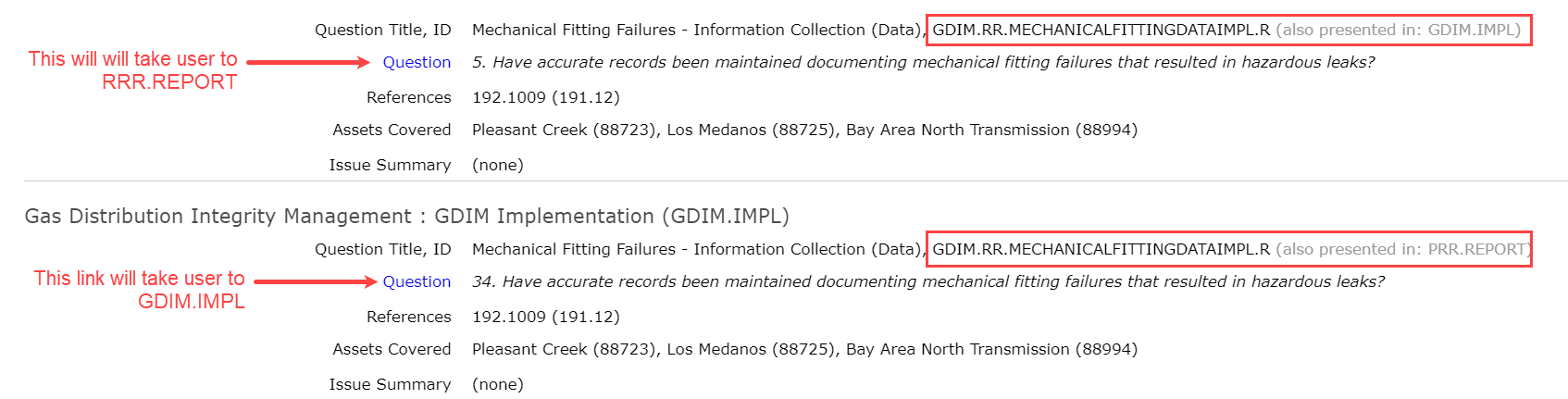
- Question links will now navigate to the correct context for re-presented questions: