


Important Installation Notice
If you are a DOT user installing IA Desktop for the first time on a DOT device, do not download the installer from here. Instead, please request the IA Desktop installer by emailing ocioclientcenter@dot.gov.
Installation Process
The installer for IA Desktop should have downloaded to your downloads folder. Double-click on the installer to begin the installation process. If you encounter Windows SmartScreen or User Account Control, follow these steps:
Step 1
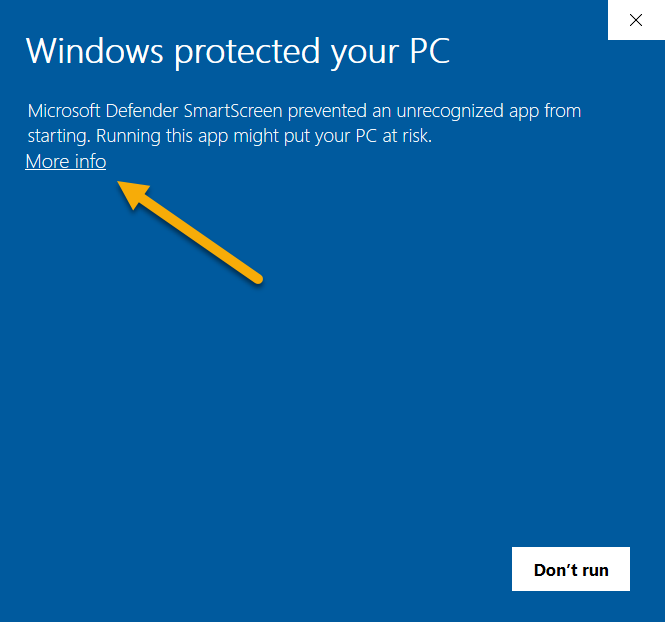
If Windows SmartScreen appears, click "More info" to see additional options
Step 2
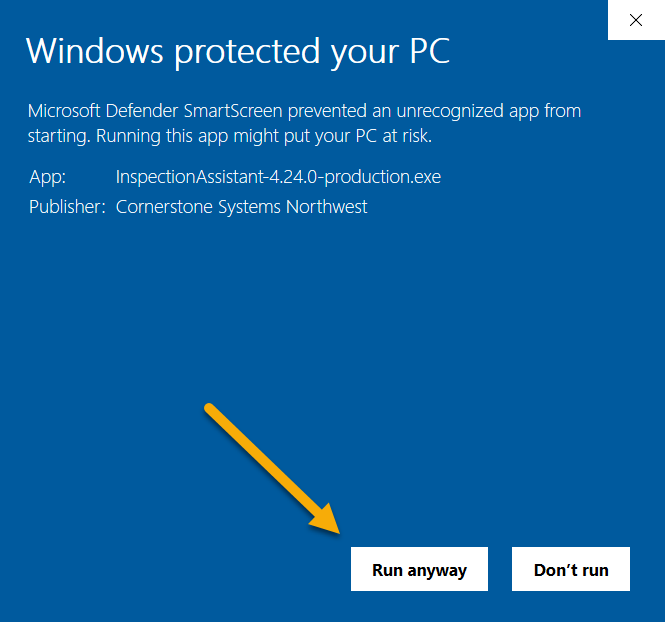
Click "Run anyway" to proceed with the installation
Step 3
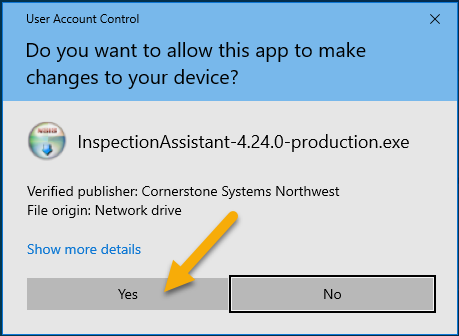
If User Account Control (UAC) prompts, click "Yes" to allow the program to make changes
Step 4
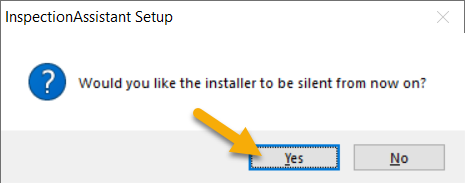
Follow the installation wizard to complete the setup
Need help?
For additional support questions, please contact the Inspection Assistant support line at ia-support@dot.gov .